Posts

Showing posts with the label pnp

Connecting to Multiple SharePoint Sites with a Single Authentication Prompt Using PnP PowerShell

Image
 Context Sometimes, you must perform some activities to multiple SharePoint sites using a script. You would probably be prompted to get connected to each site because of MFA .  In my case, I needed to verify if someone was site owner on multiple sites. Prerequisites You will need  SharePoint Admin  permissions (you may have to elevate your privileges " PIM "). PowerShell and PnP.PowerShell module must be installed. Code Sample In this example, I'm checking if my Entra ID group is member of site Onwers. $siteUrls = Import-Csv -Path $CsvPath $tenantAdminUrl = "https://yourTenant-admin.sharepoint.com" $tenantClientID = "567bf829-465a-ds5e-ad03-0af9f30o5619" $loginName = "c:0t.c|tenant|$aadGroupId" $tenantConnection = Connect-PnPOnline -Url $tenantAdminUrl -ClientId $tenantClientID -Interactive -ReturnConnection foreach ($siteUrl in $siteUrls) { #Connect to the site Connect-PnPOnline -Url $siteUrl -ClientId $tenantClientID ...

One or more field types are not installed properly. Go to the list settings page to delete these fields.

Image
Recently, I was using a Power Automate workflow to create folder structure inside SharePoint Document Set. Everything went well except... at workflow execution. I got an error message saying:  One or more field types are not installed properly. Go to the list settings page to delete these fields . I had 27 fields to reviews. I decided to delete set of 3 fields and re-run my workflow and so on. The issue was due to a field that had encoded space at the end of his internal name like below. isProcessReviewed _x0020_ Luckily because my document library was empty so deleting fields was an acceptable solution otherwise we could have lose data. An other option could be extract list schema using PnP PowerShell and review list and fields definition.

How to give app access on a specific SharePoint site using Azure AD API permission

Image
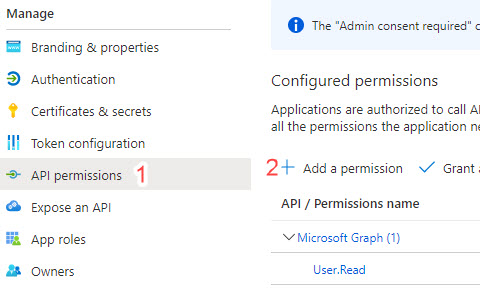
Sometime, you want to give third party applications access to a specific SharePoint online site collection using Microsoft Graph API or SharePoint API.  You can achieve this in two steps : Set up API Permission from App registration Grant app access to the specified site collection Set up API Permissions In azure AD, select your app registration. Then go to API permissions, click on add a permission. Add API Access Select Microsoft Graph or SharePoint, then application permissions. Pick Sites.Selected permissions, select it then click on Add permissions. Choosing selected sites permissions Now your permissions are selected you must grant admin consent. At this point, you have given to your app selected site collections permissions but you did not define what permission level to use nor what site collection can be access by your app. Grant App access to your site collection You will need pnp management shell to do this, your App Id, and the url of the site collection that will be ...